MCP and NetSuite: giving AI real context over your ERP
If you’ve been using tools like Claude or ChatGPT, you’ve probably experienced how powerful AI becomes when it has context e.g. when you upload a file to it and ask questions about it.
MCP is about taking that idea seriously — and applying it directly to systems like NetSuite.
What is MCP (in plain English)
MCP (Model Context Protocol) is a standard created by Anthropic that defines how AI models interact with external systems in a structured and predictable way.
At a surface level, it allows an AI client to:
- Discover available tools
- Understand what those tools do
- Call them safely
But under the hood, it goes further.
MCP defines machine-readable descriptions of capabilities.
That means it can describe:
- What objects exist (for example, a
customer) - What fields those objects contain (e.g.,
id,companyName,subsidiary) - What actions are available (create, update, query)
- What inputs a tool expects
- What outputs it returns
For example:
If NetSuite exposes a customer record, MCP documentation can define:
- That
idrepresents the internal system identifier - That
subsidiaryis a required field - That certain fields are writable and others are read-only
This gives the AI structural clarity instead of forcing it to guess.
Tools, not just data
MCP doesn’t only expose raw data access. It can also expose tools.
A tool might:
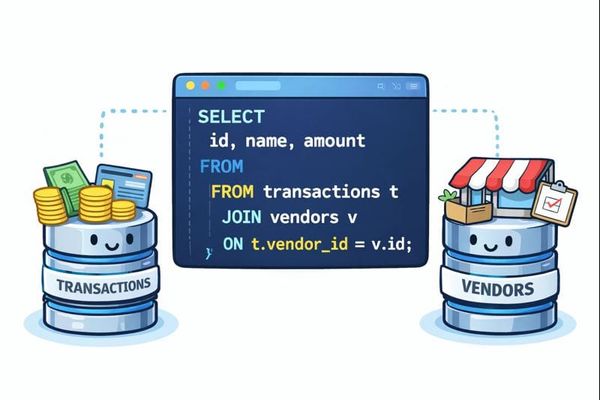
- Run a SuiteQL query
- Execute a saved search
- Create a journal entry
- Or even perform a defined calculation
For example, imagine defining a tool that calculates EBITDA using a specific formula. MCP would specify:
- The required inputs
- The logic endpoint to call
- The structure of the result
The AI doesn’t invent the formula — it calls the defined tool.
Why this matters
Instead of giving an AI “access to a database,” MCP provides:
- A structured schema
- Defined operations
- Clear permission boundaries
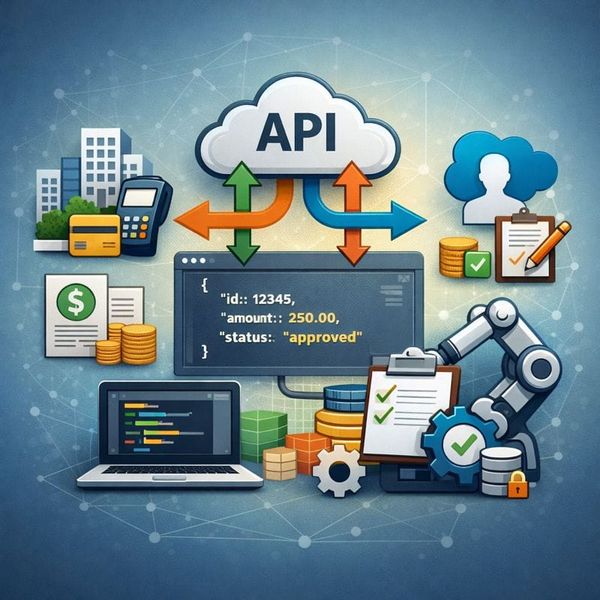
You can think of it as a typed API contract for AI agents.
It tells the model:
Here are the objects you can see.
Here are the tools you can use.
Here are the parameters they require.
And here are the limits.
That structure is what makes it viable in systems like NetSuite, where permissions, data integrity, and auditability matter.
NetSuite’s MCP: what it actually does
NetSuite provides its own MCP implementation via a managed SuiteApp called MCP Standard Tools.
NetSuite describes it as a set of tools that let you interact with NetSuite data — including:
- Records
- Reports
- Saved searches
- SuiteQL queries
…through an AI client using MCP.
Translated into normal language:
Claude can now ask NetSuite questions and take actions, but only through well-defined, permission-aware tools.
What you can do with NetSuite’s MCP tools
Once enabled, NetSuite’s MCP lets an AI client:
- Query NetSuite in natural language
Describe what you need (e.g., “Show me the top 10 customers by revenue last quarter”), and Claude will generate the appropriate SuiteQL query, run it, and return structured results. - Access NetSuite reports
Run existing reports, retrieve the results, and interact with them — without navigating menus or exporting files. - Create and update records
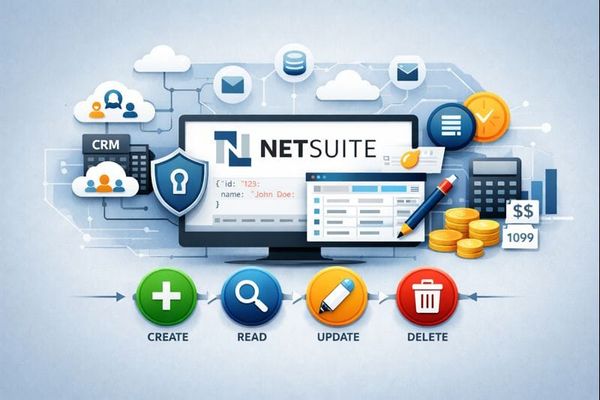
Instruct Claude to create new records or modify existing ones. All actions are executed through NetSuite APIs, just like your automation scripts. - Run saved searches
Execute saved searches directly from your AI client and use the results for analysis or follow-up actions.
Permission compliance (this part is critical)
MCP does not bypass NetSuite security.
Everything Claude can see or do is strictly determined by:
- The NetSuite role you connect with
- The permissions assigned to that role
MCP does not grant additional access.
It only exposes what the role already allows.
This is what makes MCP viable in real accounting environments.
Installing NetSuite’s MCP standard tools SuiteApp
Below is a summary of NetSuite’s official instructions for installing the MCP Standard Tools SuiteApp. Before installing the SuiteApp, you’ll need to enable a few required NetSuite features.
Prerequisites
Ensure the following features are enabled:
- Go to Setup → Company → Enable Features
- Open the SuiteCloud subtab
Under SuiteScript:
- ✅ Enable Server SuiteScript
Under SuiteTalk (Web Services):
- ✅ Enable REST Web Services
Click Save.
Install the MCP standard tools SuiteApp
- Go to the SuiteApps tab
- In the search field, enter MCP Standard Tools
- Click the MCP Standard Tools icon
- Click Install (top right)
- Wait for the installation to complete
This is a managed SuiteApp, meaning NetSuite will automatically keep it up to date.
Best practice
Before connecting Claude to NetSuite, create a dedicated NetSuite role with carefully scoped permissions for MCP access. Below is a recommended baseline configuration to get started and safely experiment.
Minimum permissions to get started
Transactions (View)
- Bills — View
- Credit Memo — View
- Customer Deposit — View
- Customer Payment — View
- Invoice — View
Reports (View)
- Balance Sheet — View
- Financial Statements — View
- Income Statement — View
- SuiteAnalytics Workbook — View
Lists (View)
- Accounts — View
- Customers — View
- Items — View
- Vendors — View
Permissions (critical)
These permissions are essential for MCP to function properly (took me a while to find this out, so you are welcome!):
- MCP Server Connection — Full ⚠️
- Log in using OAuth 2.0 Access Tokens — Full ⚠️
- REST Web Services — Full
- SuiteAnalytics Connect — Full
- SuiteBundler Audit Trail — Full
- SuiteScript — Full
⚠️ The two most important permissions are:
MCP Server Connection and
Log in using OAuth 2.0 Access Tokens
Without these, the MCP integration will not work.
A note on sandbox vs production
The permissions above are primarily View-level, which makes them safe for production environments when you're just experimenting.
If you're working in a sandbox, you can temporarily elevate certain permissions to Full to:
- Test record creation
- Test updates
- Explore more advanced workflows
Sandbox is the ideal place to make the experience more interactive — without risking real data.
Accessing the MCP tools
After installation, NetSuite exposes the MCP tools through a dedicated endpoint.
The URL format is:
https://<accountid>.suitetalk.api.netsuite.com/services/mcp/v1/suiteapp/com.netsuite.mcpstandardtools
Save this to connect to Claude.
Connecting NetSuite to Claude (custom tools)
Now comes the fun part.
Once the MCP Standard Tools SuiteApp is installed and your dedicated role is configured, you can connect Claude to NetSuite.
Step-by-step: connecting NetSuite to Claude
- Open a browser and log in to your NetSuite account
- Open a new tab and go to https://claude.ai
- Log in to your Claude account
(Enterprise or Pro plan required for custom connectors) - In Claude, go to Settings → Connectors
- Click Add custom connector
- Enter:
- Name: e.g.
NetSuite - Remote MCP URL: your NetSuite MCP endpoint
https://<accountid>.suitetalk.api.netsuite.com/services/mcp/v1/suiteapp/com.netsuite.mcpstandardtools
- Name: e.g.
- Click Add
- Click Connect
On the first connection:
- Claude will prompt you to allow access
- Review associated risks and controls
- Approve access
- Make sure you log in using the dedicated MCP role created earlier
If successful, Claude will confirm the connection.
You can now access NetSuite tools from the Search and tools icon inside a new Claude chat.
Bonus: connect Ramp as well
You can extend the exact same setup to Ramp (official instructions here).
Follow the same steps as above, but when adding the custom connector, enter:
- Name:
Ramp - Remote MCP URL:
https://mcp.ramp.com/mcp
Click Add, then Connect, and approve access.
What this unlocks
Claude now has context over:
- Your NetSuite instance
- Your Ramp instance
You can ask questions like:
- “Which expense categories drove the most spending last month?”
- “List all card transactions above $5,000 in the last 30 days.”
- “Break down our SaaS spending by vendor and department.”
- “Flag any unusual expense patterns compared to prior months.”
Instead of exporting data between systems, you’re allowing AI to operate across them — within the permissions you defined.
That’s when this starts to feel less like a chatbot… and more like part of your finance stack.